# The Hidden risk of having an unencrypted company device: Why BitLocker Is Not Optional
{% hint style="danger" %} Disclaimer — Educational Use Only and Liability LimitsThe procedures and information described in this article are provided for educational and research purposes only.
\ Their purpose is to raise awareness of the security risks associated with unencrypted disks and to emphasize the importance of adequate data protection measures, such as full disk encryption (e.g., BitLocker).
\ The author does not encourage the misuse of the information provided.
\ The author assumes no responsibility for any direct or indirect damage, loss of data, or service interruption resulting from the use or misuse of this content.
{% endhint %}
Have you ever lost your PC login credentials? Well, in corporate environments, losing credentials is the lesser evil, since if the PC is on a domain, you can reset them through Active Directory. However, in poorly configured environments, this can be a very serious problem.
This article is not intended to show how to hack into systems. Rather, it analyzes a realistic and legitimate scenario:
> An IT manager needs to regain access to a company-owned Windows device where the local administrator password has been lost — and BitLocker was never enabled.
The scenario in which this problem may arise is:
* Corporate Windows device
* Local account login
* No Microsoft account recovery configured
* No domain join / no Entra ID
* **BitLocker not enabled**
* Physical access to the device available
This configuration is more common in small and medium-sized companies than many security professionals believe. And that's where the problem begins. **This scenario is not limited to corporate environments — it frequently occurs on personal devices where encryption is not enabled.**
**Understanding how password saving works**
When you set your password for the first time on your PC, it is saved locally in a database called **SAM Database** (Security Account Manager) located in **C:\Windows\System32\config\SAM**. It is not saved in plain text, but with a hash, specifically **NT Hash** (or NTLM) based on MD4.
The password is converted to Unicode and MD4 is applied to generate a 128-bit digest that is stored in the SAM database.
Many people wonder why Windows still uses **MD4** hashing, given that it is now considered weak. The answer is that the **SAM** file is never left “in plain text”: it is protected by additional encryption based on two elements:
* **the SYSTEM hive**
* the **Boot Key / SysKey**, used to encrypt the contents of the SAM
This means that even if someone copies the SAM file from the disk, **they cannot read the hashes without also having the SYSTEM file**, which is necessary to derive the correct key.
Furthermore, for reasons of historical compatibility, Windows **does not use a salt in password hashes**, but compensates with other levels of protection such as **BitLocker**, **LSA Protection**, and **Credential Guard**. However:
* **Credential Guard** only comes into effect **after Windows has started**, so it does not prevent the SAM from being modified in an offline environment such as WinPE or Hiren's Boot.
* **LSA Protection** prevents running malware from accessing credentials, but it **does not encrypt the SAM** and does not offer protection against an offline attack.
In summary, these features improve system security while **Windows is running**, but they do not protect the disk when booting from external media.
And this is precisely the weak point: **without BitLocker, the disk is not encrypted**, so it is possible to boot the PC from a USB (such as Hiren's Boot) and access the disk structure, including the SAM, and then reset the password.
{% hint style="info" %}
With BitLocker, on the other hand, the disk's contents are encrypted and remain inaccessible until the relevant recovery key is entered: this is the only measure that truly blocks this type of offline attack.
{% endhint %}
**How do I reset my password?**
Now that we understand the structural weakness of an unencrypted system, let's see how recovery environments work in a legitimate and authorized scenario.
To access an offline recovery environment, administrators typically prepare external boot media (USB or CD) using the official Hiren's Boot PE image and a trusted imaging utility. This allows the system to boot independently of the installed operating system. (******).
Once you have prepared your USB stick or CD, choose whichever is most convenient for you.\
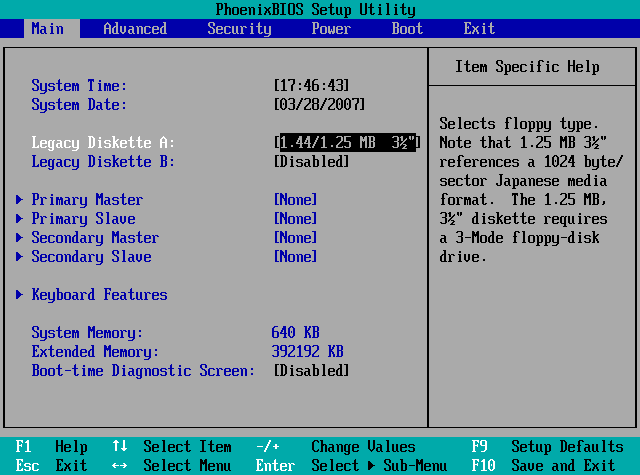
The next step is to start the PC and enter the BIOS. The interface may vary depending on the age of the machine, but the purpose is always the same.
At this point, the internal disk becomes accessible because it is not encrypted. From the main interface (see screenshot), the environment provides access to various administrative categories, including maintenance, diagnostics, and security-related utilities.
Within the **Security section**, credential management tools are available that can interact with local Windows account data when the disk is not protected by BitLocker. The important concept is not the specific tool used — they perform similar functions — but the architectural implication:
When the disk is unencrypted, offline administrative environments can modify local authentication mechanisms. **This is not an exploit or vulnerability.**\
It is the expected behavior of a system that **lacks full-disk encryption**.
Beyond credential utilities, **Hiren’s Boot** includes **more than 80 tools** for:
* Disk management and partitioning
* Backup and data recovery
* Malware scanning
* Network diagnostics
* Hardware analysis (e.g., CPU-Z and similar utilities)
This makes it a powerful maintenance platform for IT professionals — and at the same time, a clear demonstration of why encryption is essential.
**If BitLocker were enabled, the internal disk would remain inaccessible without the proper recovery key, effectively preventing this type of offline interaction.**