# Install Ubuntu Touch
{% hint style="danger" %} Disclaimer — Educational Use Only and Liability LimitsThe procedures and information in this article are for**educational purposes only**. They focus on personal study, experimentation, and improving technical skills. You**must not**use them for illegal, unauthorized, or harmful activities.Perform these operations only on devices you own, and make sure to back up all data first. Some steps, like unlocking the bootloader or flashing firmware, can void your warranty, lead to data loss, or make your device unusable.\ I do not accept responsibility for any direct or indirect damages, data loss, security issues, or legal problems that result from following the instructions in this article.
{% endhint %}
What is Ubuntu Touch?
**Ubuntu Touch** is an open-source mobile operating system created by **UBports**. Unlike Android, it emphasizes **privacy**, **security**, and **convergence**. This means the same device can work as a smartphone or a small Linux PC when connected to other equipment.\
When I first found out about Ubuntu Touch, I wanted to try it on my Redmi Note 7. I was curious to see if I could turn a basic smartphone into a portable Linux machine. I hoped to install tools like nmap or metasploit and carry a mini hacking and administration device in my pocket.
**Checking Device Compatibility**
The first step was to check if my phone was supported. UBports maintains an official list of compatible devices:
It’s always important to check compatibility. Every phone has different requirements. Not all Android devices can run Ubuntu Touch.
**Unlocking the Bootloader**
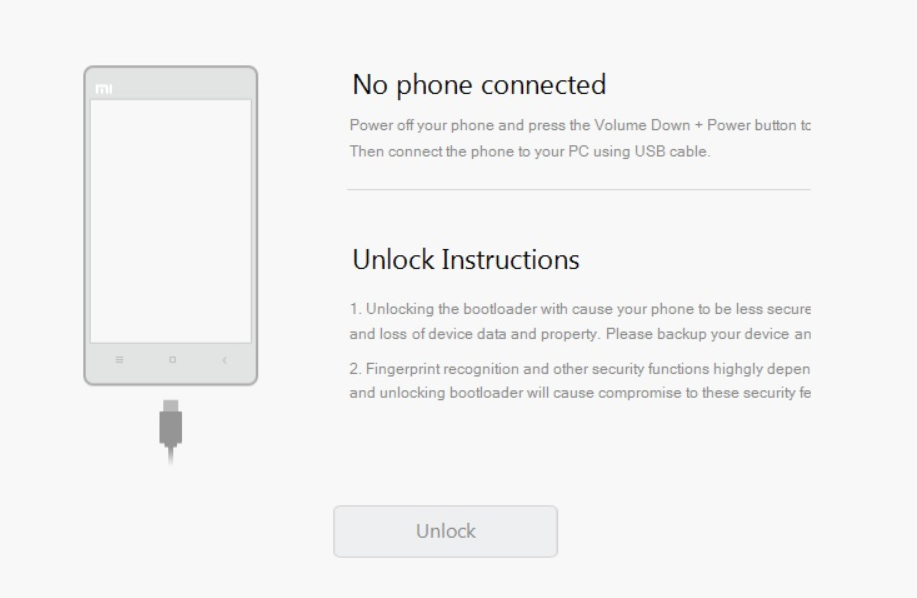
Since my phone was originally running **MIUI**, I had to **unlock the bootloader**. Without this step, I cannot flash a custom system image. For Xiaomi devices, you can download the official unlock tool here:
For Xiaomi devices, the official unlock tool can be downloaded here:\
After downloading and installing the tool, I followed the instructions, logged into my **Mi account**, and waited for approval. Once I received it, I connected my phone via USB and completed the unlock.
**Enabling Developer Options and USB Debugging**
Before using **fastboot**, I had to enable Developer Options:
1. Go to *Settings* → *About phone*
2. Tap **MIUI version** seven times to enable Developer Mode
3. In *Settings* → *Additional settings* → *Developer options*, enable both **USB debugging** and **OEM unlocking**
**Entering Fastboot Mode**
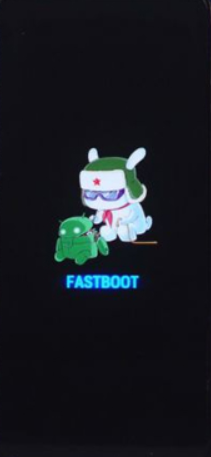
To interact with the phone at a low level, I had to boot it into **Fastboot mode**:
1. Turn off the phone completely
2. Press and hold **Volume Down + Power** until the Fastboot screen appeared
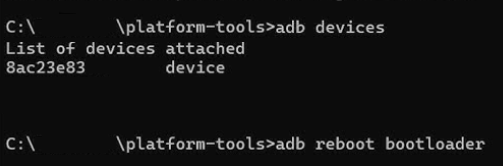
The phone is now ready to communicate with your computer via `fastboot`. On the PC, open the command line and run:
```bash
fastboot devices
```
You should see your phone listed
**Installing Ubuntu Touch**
With everything ready, I used the **UBports Installer**, a desktop application that simplifies the flashing process.
1. Downloaded the installer from the UBports website
2. Connected my Redmi Note 7 via USB
3. The installer automatically detected the device
4. Confirmed the prompts and let it flash the required images
The process was mostly automated. I just had to keep the phone connected until it was complete.

**Becoming sudo on Ubuntu Touch**
Ubuntu Touch commonly mounts the root filesystem as **read-only**. Before making any changes that require elevated privileges, it helps to describe the default state and behavior of the system.
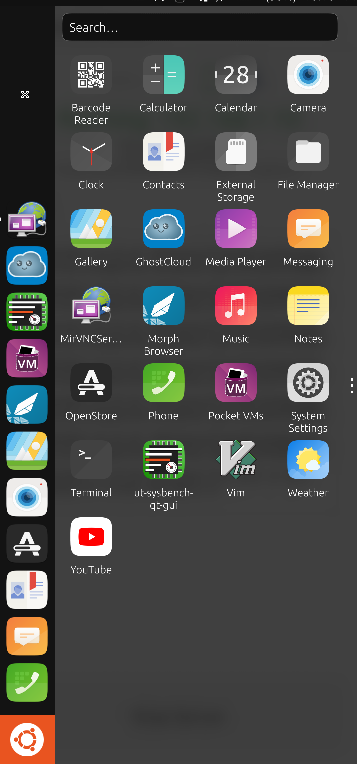
If we want to install an application on Ubuntu Touch, we can use OpenStore (for example, I used it to install VNC Server and YouTube). However, for tools like Python, we need to use Libertine, which allows running Linux desktop applications in an isolated container on Ubuntu Touch
By default:
* The system runs a mobile-focused user interface with scoped apps and limited access to low-level system paths.
* The root filesystem is mounted `ro` (read-only), which prevents package installation and direct modification of system files.
Now that you know what Ubuntu Touch is in broad terms, we can proceed to mount the file system as rw (read-write).
```
# remount root as writable
sudo mount -o remount,rw /
# verify the change
mount | grep ' / '
# or
findmnt /
```
After this command, the root filesystem should show `rw` in the mount options.
**Install packages (examples)**
With the filesystem writable, update the package lists and install required tools. Availability depends on the specific Ubuntu Touch build and its repositories:
```
sudo apt update
sudo apt install nmap
```
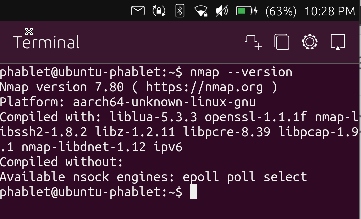
Verify the installed tools:
```
nmap --version
```
{% hint style="warning" %}
Warning: Modifying the root filesystem and installing packages can affect system stability and may not be supported on all Ubuntu Touch builds. Reverting these changes may require re-flashing the device.
{% endhint %}
**My Experience**
The installation had some challenges, but I was able to get Ubuntu Touch running on my Redmi Note 7.
Having a full Linux environment on a smartphone is very practical. This project was useful to understand more about:
* Android internals
* Bootloaders
* Fastboot
* Linux mobile development
For anyone interested, I recommend trying it carefully. Make sure your device is supported, follow the instructions step by step, and always keep a backup.